

多页面程序是一种很常见的设计, 一个程序中有多个页面, 然后直接切换页面而不需要创建新的窗口, WPF 中使用 Frame 来做页面跳转, 但是如何优雅的设计一个多页面程序, 这是个问题.
最基本的页面跳转
编写一个最基本的页面跳转, 首先我们需要在主窗口中放一个 Frame 控件, 然后再编写两个 Page. 下面我们以两个页面 MainPage 和 Configuration 作为示例讲解.
<!--窗口 UI--><Window x:Class="WpfNavigationTutorial.MainWindow" xmlns="http://schemas.microsoft.com/winfx/2006/xaml/presentation" xmlns:x="http://schemas.microsoft.com/winfx/2006/xaml" xmlns:d="http://schemas.microsoft.com/expression/blend/2008" xmlns:mc="http://schemas.openxmlformats.org/markup-compatibility/2006" xmlns:local="clr-namespace:WpfNavigationTutorial" xmlns:pages="clr-namespace:WpfTutorial.Views.Pages" mc:Ignorable="d" Title="MainWindow" Height="450" Width="800"> <Grid> <Grid.ColumnDefinitions> <ColumnDefinition Width="3*"/> <ColumnDefinition Width="13*"/> </Grid.ColumnDefinitions>
<ListBox Name="navMenu" SelectionChanged="ListBox_SelectionChanged"> <ListBoxItem Content="Main" Tag="{x:Type pages:MainPage}"/> <ListBoxItem Content="Configuration" Tag="{x:Type pages:ConfigurationPage}"/> </ListBox>
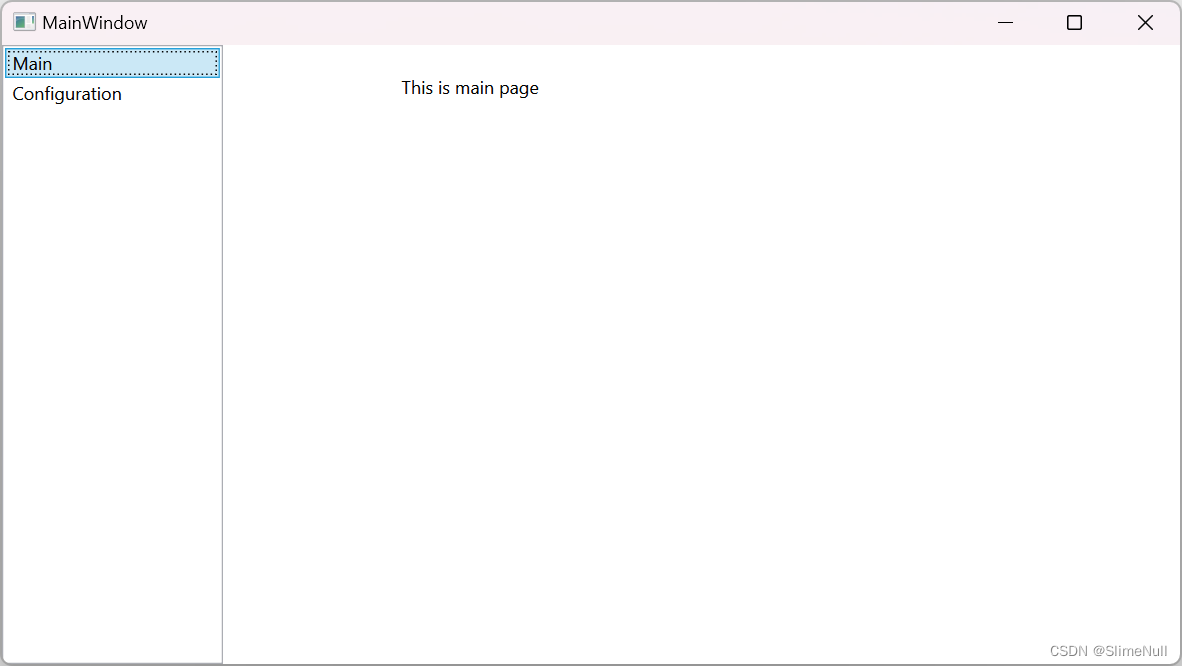
<Frame Grid.Column="1" Name="appFrame" NavigationUIVisibility="Hidden"/> </Grid></Window>在上面的代码中, 我们使用了一个左右两栏布局, 左侧放了一个 ListBox, 右侧放了一个 Frame, 在 ListBox 中, 我们放了两个 ListBoxItem, 使用 Content 做内容, 并且给加了 Tag 标识这个按钮具体要跳转到哪个页面.
然后在两个页面中分别这么简单写一下内容:
<!--这里是主页面--><Page x:Class="WpfTutorial.Views.Pages.MainPage" xmlns="http://schemas.microsoft.com/winfx/2006/xaml/presentation" xmlns:x="http://schemas.microsoft.com/winfx/2006/xaml" xmlns:mc="http://schemas.openxmlformats.org/markup-compatibility/2006" xmlns:d="http://schemas.microsoft.com/expression/blend/2008" xmlns:local="clr-namespace:WpfTutorial.Views.Pages" mc:Ignorable="d" d:DesignHeight="450" d:DesignWidth="800" Title="MainPage">
<Grid> <Grid MaxWidth="400" Margin="20"> <StackPanel HorizontalAlignment="Stretch"> <TextBlock>This is main page</TextBlock> </StackPanel> </Grid> </Grid></Page><!--这里是里一个页面页面 (配置页面)--><Page x:Class="WpfTutorial.Views.Pages.ConfigurationPage" xmlns="http://schemas.microsoft.com/winfx/2006/xaml/presentation" xmlns:x="http://schemas.microsoft.com/winfx/2006/xaml" xmlns:mc="http://schemas.openxmlformats.org/markup-compatibility/2006" xmlns:d="http://schemas.microsoft.com/expression/blend/2008" xmlns:local="clr-namespace:WpfTutorial.Views.Pages" mc:Ignorable="d" d:DesignHeight="450" d:DesignWidth="800" Title="ConfigurationPage">
<Grid> <Grid MaxWidth="400" Margin="20"> <StackPanel HorizontalAlignment="Stretch"> <TextBlock>This is configuration page</TextBlock> </StackPanel> </Grid> </Grid></Page>在后台代码中, 我们这么写, 当选择项变更的时候, 也使用 Frame 进行页面跳转.
public partial class MainWindow : Window{ public MainWindow() { InitializeComponent(); }
// 页面实例的缓存 private static readonly Dictionary<Type, Page> bufferedPages = new Dictionary<Type, Page>();
// 当 private void ListBox_SelectionChanged(object sender, SelectionChangedEventArgs e) { // 如果选择项不是 ListBoxItem, 则返回 if (navMenu.SelectedItem is not ListBoxItem item) return;
// 如果 Tag 不是一个类型, 则返回 if (item.Tag is not Type type) return;
// 如果页面缓存中找不到页面, 则创建一个新的页面并存入 if (!bufferedPages.TryGetValue(type, out Page? page)) page = bufferedPages[type] = Activator.CreateInstance(type) as Page ?? throw new Exception("this would never happen");
// 使用 Frame 进行导航. appFrame.Navigate(page); }}最后的效果就是这样, 点击左侧项目的时候, 右侧页面会直接进行跳转:
加一点美化
用 ListBox 做侧边页面栏就太丑了, 我们可以使用 ListBox 自己给它套一个样式.
这里不使用
ItemsControl是因为,ListBox的项目是 “可选中” 的, 而ItemsControl是没有的,ItemsControl只适合界面控件的批量绑定生成.
创建一个 NavigationItem 用来存放导航数据:
public class NavigationItem{ /// <summary> /// 导航标题 /// </summary> public string Title { get; set; } = string.Empty;
/// <summary> /// 导航描述 /// </summary> public string Description { get; set; } = string.Empty;
/// <summary> /// 目标页面的类型 /// </summary> public Type TargetPageType { get; set; } = typeof(Page);}为 MainWindow 创建一个 MainWindowModel 用来存放页面数据:
public class MainWndowModel{ public ObservableCollection<NavigationItem> NavigationItems { get; } = new ObservableCollection<NavigationItem>() { new NavigationItem() { Title = "Main", Description = "The main page of this application",
TargetPageType = typeof(MainPage) }, new NavigationItem() { Title = "Configuration", Description = "Configure something you want",
TargetPageType = typeof(ConfigurationPage) } };}然后将主页面的代码改成这样:
<Window x:Class="WpfNavigationTutorial.MainWindow" xmlns="http://schemas.microsoft.com/winfx/2006/xaml/presentation" xmlns:x="http://schemas.microsoft.com/winfx/2006/xaml" xmlns:d="http://schemas.microsoft.com/expression/blend/2008" xmlns:mc="http://schemas.openxmlformats.org/markup-compatibility/2006" xmlns:local="clr-namespace:WpfNavigationTutorial" xmlns:pages="clr-namespace:WpfTutorial.Views.Pages" xmlns:vm="clr-namespace:WpfNavigationTutorial.ViewModels" mc:Ignorable="d" Title="MainWindow" Height="450" Width="800"> <Window.DataContext> <!--直接在 XAML 中给 Window 的 DataContext 赋值--> <vm:MainWndowModel/> </Window.DataContext>
<Grid> <Grid.ColumnDefinitions> <ColumnDefinition Width="3*"/> <ColumnDefinition Width="13*"/> </Grid.ColumnDefinitions>
<!--使用 ListBox, 并且将 ItemsSource 绑定到我们的数据--> <!--记得要使用禁用它的水平滚动条--> <ListBox Name="navMenu" ItemsSource="{Binding NavigationItems}" BorderThickness="0 0 1 0" ScrollViewer.HorizontalScrollBarVisibility="Disabled" SelectionChanged="navMenu_SelectionChanged"> <ListBox.ItemTemplate> <DataTemplate> <Border Padding="5"> <StackPanel> <TextBlock Text="{Binding Title}"/>
<!--描述信息用灰色字体, 字号也小一点, 多余的部分剪切掉--> <TextBlock Text="{Binding Description}" Foreground="Gray" FontSize="10" TextTrimming="CharacterEllipsis"/> </StackPanel> </Border> </DataTemplate> </ListBox.ItemTemplate> </ListBox>
<Frame Grid.Column="1" Name="appFrame" NavigationUIVisibility="Hidden"/> </Grid></Window>后台代码也相应的改一下, 只需要判断数据是否是 NavigationItem 就好:
public partial class MainWindow : Window{ public MainWindow() { InitializeComponent(); }
private static readonly Dictionary<Type, Page> bufferedPages = new Dictionary<Type, Page>();
private void navMenu_SelectionChanged(object sender, SelectionChangedEventArgs e) { // 如果选择项不是 FrameworkElement, 则返回 if (navMenu.SelectedItem is not NavigationItem item) return;
Type type = item.TargetPageType;
// 如果页面缓存中找不到页面, 则创建一个新的页面并存入 if (!bufferedPages.TryGetValue(type, out Page? page)) page = bufferedPages[type] = Activator.CreateInstance(type) as Page ?? throw new Exception("this would never happen");
appFrame.Navigate(page); }}最后的效果:
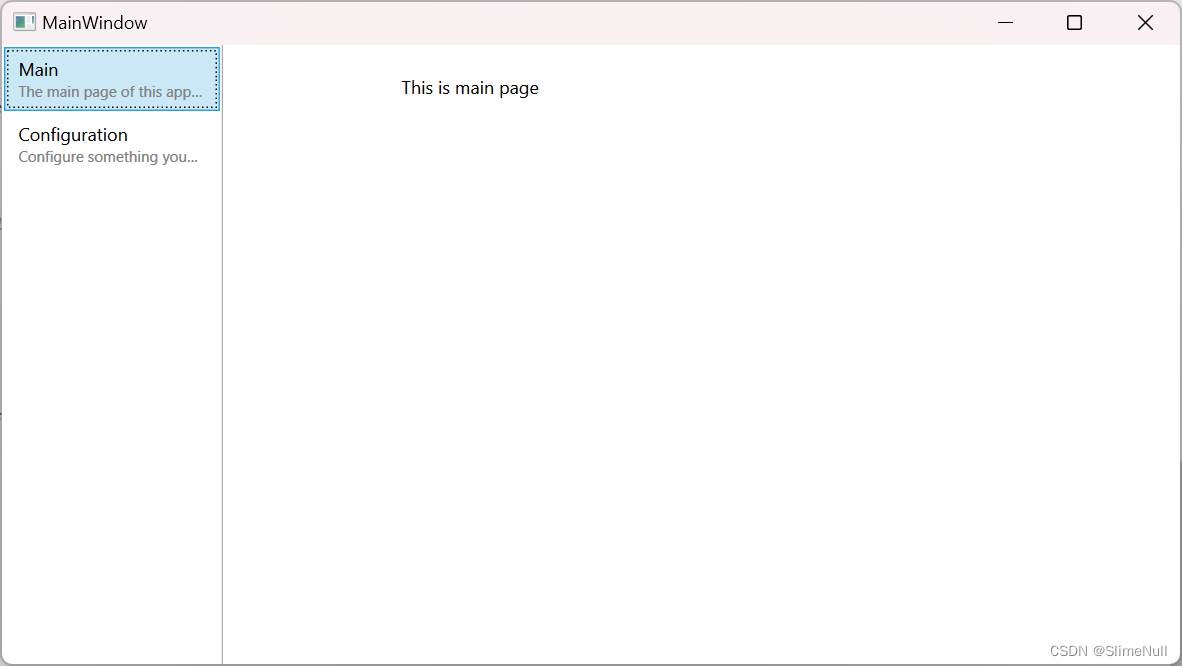
当然, 这样的效果还是很简单, 不过, 更复杂的设计, 就任由你自己发挥啦. 例如改掉
ListBox元素被选中时的丑陋颜色, 以及去掉聚集焦点时的虚线, 或者加一些动画, 都可以.